Manage Users
Invite your teammates to Yuki, control what they can do with roles, and remove access when they no longer need it.
Only users with the Admin role can manage users. The Users tab doesn't appear for other users.
Open User Management
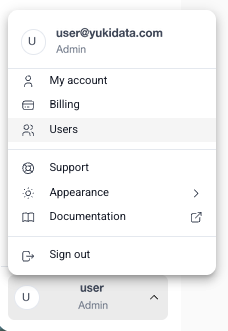
Click your name in the bottom-left corner of Yuki and select Users.
Invite a New User
- Under Invite New User, enter the teammate's email in User Email
- Click Invite User
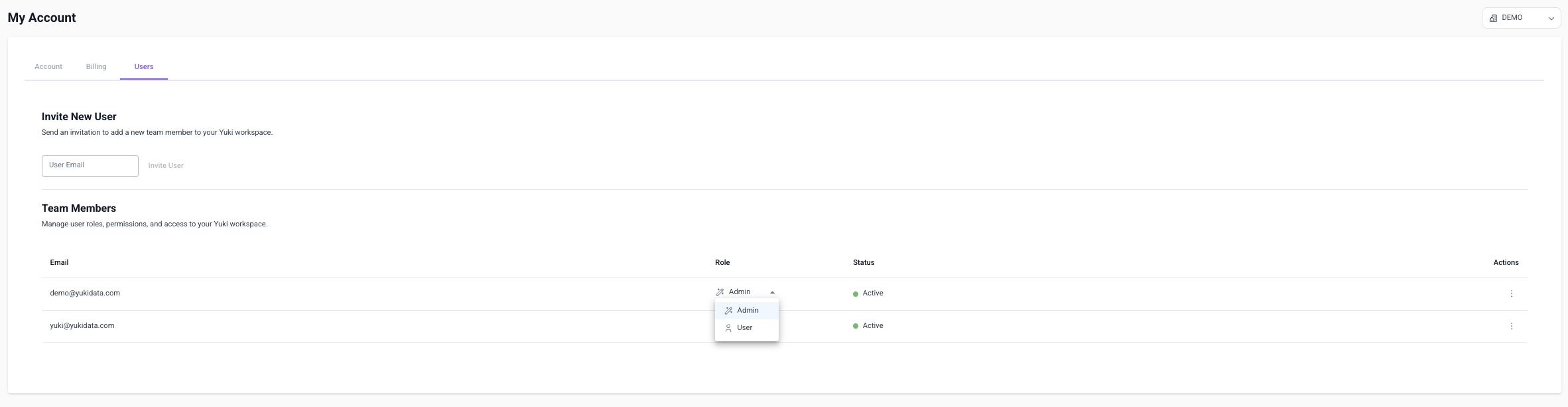
Yuki sends them an invitation email. They appear in Team Members with a Pending status until they accept it, then their status changes to Active.
If the invitation got lost, click the ⋮ menu in the user's row and select Resend Invite.
Roles
New users join with the User role. Once a user accepts their invitation, you can change their role: open the Role dropdown in the user's row and pick a new one.
| Role | Access |
|---|---|
| Admin | Everything a User can do, plus: • Managing users - inviting, changing roles, and removing access • Viewing billing information in the Billing tab • Configuring Single Sign-On (SSO) for your company |
| User | Access to the Yuki dashboards for your workspace |
Remove a User
- Click the ⋮ menu in the user's row
- Select Delete and confirm
The user is removed from your Yuki workspace. To give them access again, send a new invitation.