Configure Permissions
Once your tools point at the Yuki Proxy, Yuki decides per query whether it runs on a Yuki-managed reservation or falls back to BigQuery on-demand. This step lets you restrict which identities are even eligible to have their queries considered for a Yuki-managed reservation - not every user or service account in your GCP organization gets that eligibility by default, only the ones you explicitly list.
This is about query access to Yuki's reservations, not project-level access. It's separate from granting Yuki access to your BigQuery account, which lets Yuki's service account manage and analyze your projects.
Yuki Reservations Access
By default, no GCP identity can run jobs on a Yuki-managed reservation. Only the users, service accounts, and Google groups you add here are granted Yuki's custom role Run Jobs On Yuki, which is the minimum permission needed for a query to be considered for a Yuki-managed reservation. Queries from everyone and everything else in your GCP organization - other users, other service accounts, other groups - are never routed to a Yuki-managed reservation, so every tool, pipeline, or service account you updated the connection string for must be added here before Yuki can optimize its queries.
How to Configure Permissions
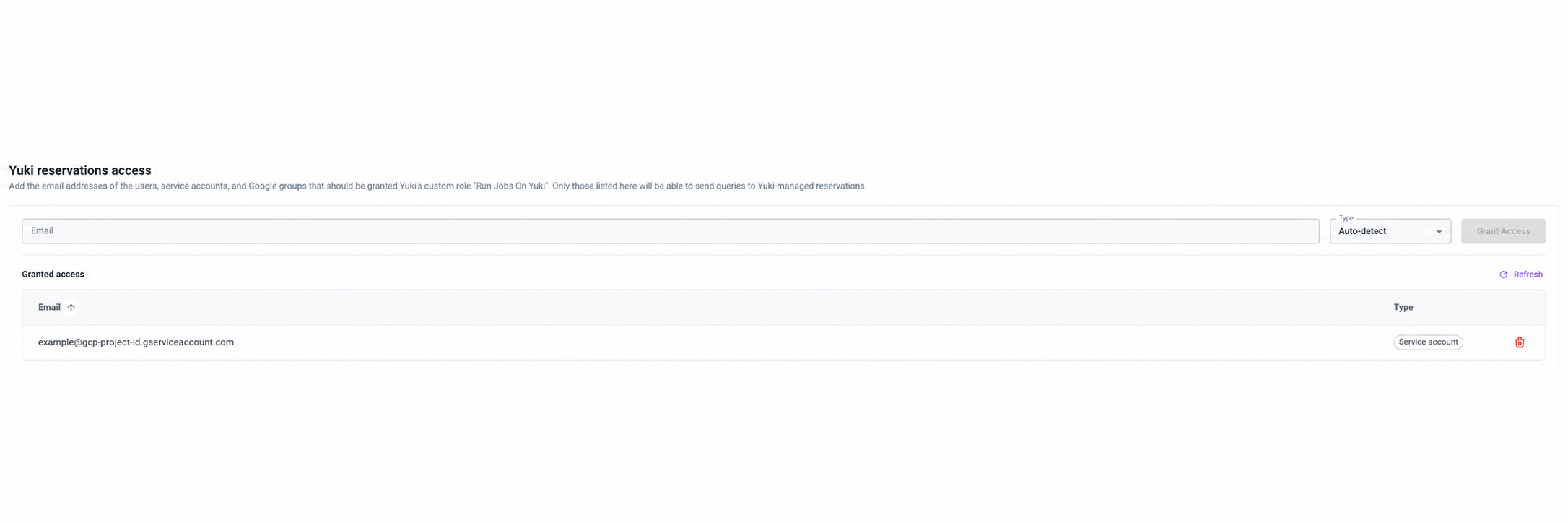
- In the Yuki app, go to Yuki reservations access
- In the Email field, enter the email address of the user, service account, or Google group you want to grant access to
- Set the Type, or leave it as Auto-detect so Yuki infers it from the email address
- Click Grant Access
Granted Access
The Granted access table lists every identity currently permitted to query through Yuki, along with its type. Use it to audit access at a glance:
- Click Refresh to reload the list
- Click the trash icon next to an entry to revoke its access
Next Step
With permissions configured, continue through Update Connection Strings for each tool so its queries route through Yuki.