Workload Priority
Workload Priority lets you create rules that group queries by tag and/or warehouse, then set how aggressively Yuki optimizes each group - anywhere from pure cost savings to maximum performance. Use it when some workloads need to run fast (production dashboards, customer-facing jobs) while others can run cheap (backfills, dev runs, ad-hoc exploration).
How it works
Every query that passes through Yuki is matched against your rules. When a query matches a rule's filters, Yuki applies that rule's optimization level - shifting it toward cheaper compute or faster compute. Rules are evaluated in priority order, so the first matching rule wins.
The Rules list
The Workload Priority page lists every rule for the selected company. Each row shows:
| Column | Description |
|---|---|
| Priority | The order rules are evaluated, top to bottom. Drag the handle on the left of a row to reorder. The first rule a query matches is the one applied. |
| Rule | The rule name you gave it. |
| Type | How multiple filters combine. Currently always AND (every filter must match). |
| Description | The compiled filter logic. |
| Optimization | A read-only mini-slider showing where the rule sits on the Cost ↔ Normal ↔ Performance scale. |
| Created / Last Edited | Timestamps. |
| Actions | Edit (pencil) or delete (trash). |
Creating a rule
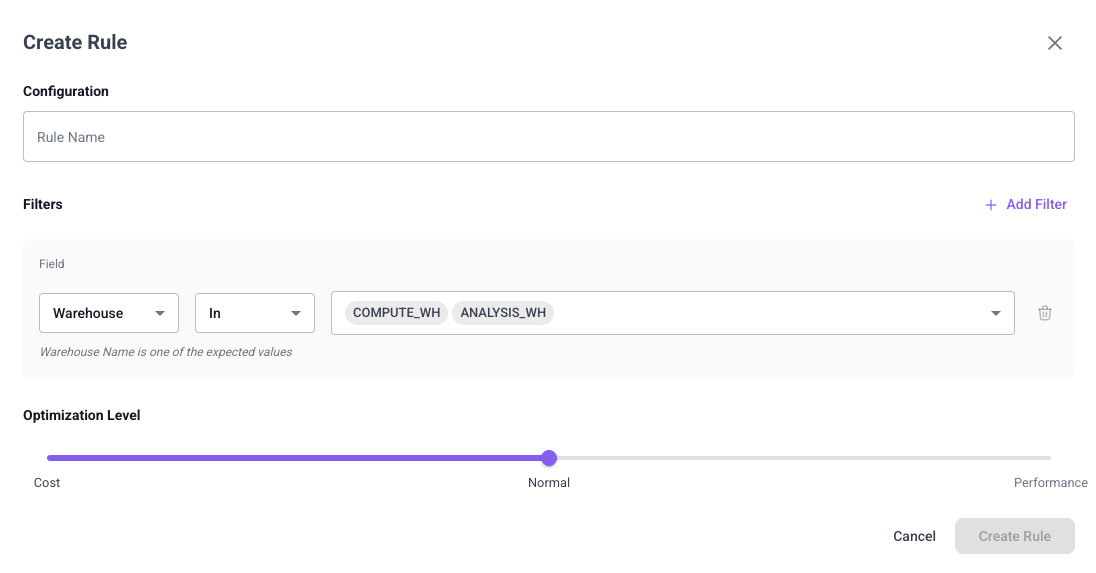
Click Create Rule to open the builder.
1. Name the rule
Enter a Rule Name under Configuration.
2. Add filters
Click Add Filter to add a condition. Each filter has a Field, an operator, and a value. When you add more than one filter they are combined with AND - a query must match all of them.
There are two fields:
Tag - filter on the query's Snowflake query tag JSON.
- Paste a Snowflake query ID into Example Query ID and click Search. Yuki fetches that query's tag JSON and displays it, so you can see the available keys (e.g.
pseudo_warehouse,dbt_job,dbt_model,dbt_target). - In Path, enter the JSONPath to the key you want to filter on, e.g.
$.dbt_job. A checkmark confirms the path resolves against the example JSON. - Choose an operator (e.g. Contains - "value in the path contains any expected value as substring") and type one or more values, pressing Enter after each to add it as a chip.
Warehouse - filter on the warehouse name. Choose the operator In or Not In, then pick one or more warehouses from the multi-select.
To remove a filter, click the trash icon on its row.
3. Set the optimization level
Drag the Optimization Level slider to set how Yuki treats matching queries:
| Level | Behavior | Best for |
|---|---|---|
| Cost | Route to the cheapest compute; favor savings over speed | Backfills, dev/test runs, non-urgent jobs |
| Normal | Balanced | General workloads (default) |
| Performance | Favor speed; route to faster compute even at higher cost | Production and customer-facing workloads |
4. Save
Click Create Rule. The button stays disabled until the rule is valid (name set and filters complete). The new rule appears in the list and starts applying to matching queries.
Editing and reordering
- Click the pencil icon to open Edit Rule and change the name, filters, or optimization level, then Save Changes.
- Drag rows by the handle to change priority. Because the first matching rule wins, put more specific rules above broader ones.
- Click the trash icon to delete a rule.