Connect Claude and Claude Code (MCP)
Yuki MCP lets Claude and Claude Code query Snowflake through Yuki. Every query is routed by Yuki to the most cost-efficient warehouse in real time.
Each user signs in with their own Snowflake account, on Snowflake's own sign-in page. Yuki receives an OAuth token for that user - never a password, and never adds or widens permissions. Queries run with the user's own role and grants.
How It Works
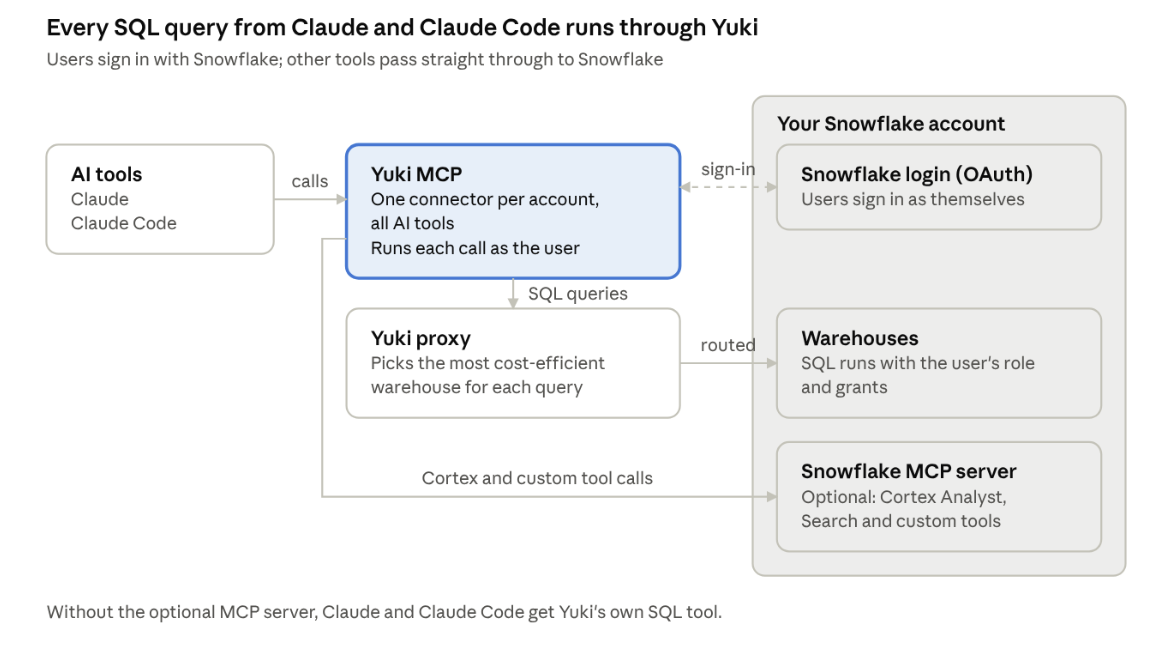
| Component | What it does |
|---|---|
| Yuki MCP connector | A remote MCP server hosted by Yuki, at an address unique to your Yuki account. Claude adds it as a custom connector, and Claude Code adds it as an HTTP MCP server. It exposes Snowflake tools and receives every tool call. |
| Snowflake login | An OAuth security integration in your Snowflake account, named YUKI_MCP_CONNECTOR. It registers Yuki as an OAuth client, so each user signs in with their own Snowflake account. |
| Yuki proxy | The same proxy your other tools already go through. It routes each SQL query from Claude or Claude Code to the most cost-efficient warehouse. |
| Your Snowflake MCP server (optional) | If you run a Snowflake-managed MCP server, Yuki connects to it and passes its tools through. Yuki overrides only its SQL tool. |
Each user signs in to Snowflake once, the first time they connect. From then on, every request follows this path:
- The user asks Claude or Claude Code a question about Snowflake data.
- Claude calls a tool on the Yuki MCP connector, using that user's OAuth token.
- If it's a SQL query, Yuki routes it to the most cost-efficient warehouse and runs it as the user, with their role and grants.
- If it's another tool, such as Cortex Analyst or Cortex Search, Yuki passes the call to your Snowflake MCP server, where it runs as the user, unchanged.
- The result goes back to Claude or Claude Code.
The user's session lasts up to 90 days. After that, the next request asks them to sign in again.
Available Tools
What Claude and Claude Code get depends on whether you add your Snowflake MCP server in Step 2. Either way, every SQL query goes through Yuki.
| Setup | Tools available |
|---|---|
| Yuki's SQL tool (default) | One tool from Yuki: run SQL on Snowflake. Claude can explore schemas and query any data the user can access, and every query is routed by Yuki. |
| With your Snowflake MCP server | All of your server's tools: Cortex Analyst, Cortex Search and any custom tools you defined. Its SQL tool runs through Yuki and is routed. Every other tool runs in Snowflake exactly as before. |
Connected straight to Snowflake's MCP server, Claude gets the same tools, but its queries are not routed through Yuki - they run on the user's default warehouse, without routing or optimization. That's why setup asks you to remove Snowflake's own connector once Yuki is added.
What You'll Need
Setup takes about 5 minutes.
- A fully hosted Yuki proxy
- A Snowflake user with the ACCOUNTADMIN role, to run the setup script once
- For Claude: a Claude organization Owner on a Team or Enterprise plan, to add the connector
- For Claude Code: each developer adds the connector themselves
Each user who connects needs the following in Snowflake:
- A default warehouse (
DEFAULT_WAREHOUSE) - A default role other than ACCOUNTADMIN, SECURITYADMIN or ORGADMIN. Snowflake blocks these roles from OAuth sign-ins, so admins should test with an everyday role.
- Grants on the data they want to query. Yuki doesn't add or widen permissions.
Step 1 - Set Up Snowflake Login
Claude and Claude Code share one Snowflake login, so you only do this once. In the Yuki platform, go to Integrations, filter by AI & Agents, and click Connect on Claude or Claude Code - whichever you connect first.
Copy the script from the platform and run it once in a Snowflake worksheet as ACCOUNTADMIN. Yuki fills in your redirect address.
USE ROLE ACCOUNTADMIN;

CREATE SECURITY INTEGRATION IF NOT EXISTS YUKI_MCP_CONNECTOR
  TYPE = OAUTH
  ENABLED = TRUE
  OAUTH_CLIENT = CUSTOM
  OAUTH_CLIENT_TYPE = 'CONFIDENTIAL'
  OAUTH_REDIRECT_URI = '<YOUR_YUKI_ADDRESS>/oauth/callback'
  OAUTH_ENFORCE_PKCE = TRUE
  OAUTH_ISSUE_REFRESH_TOKENS = TRUE
  OAUTH_REFRESH_TOKEN_VALIDITY = 7776000
  OAUTH_USE_SECONDARY_ROLES = IMPLICIT;

SELECT
  oauth_client:OAUTH_CLIENT_ID::STRING AS client_id,
  oauth_client:OAUTH_CLIENT_SECRET::STRING AS client_secret
FROM (SELECT PARSE_JSON(SYSTEM$SHOW_OAUTH_CLIENT_SECRETS('YUKI_MCP_CONNECTOR')) AS oauth_client);
Paste the two values the SELECT returns into OAuth client id and OAuth client secret in Yuki.
What the script sets up:
| Setting | Purpose |
|---|---|
OAUTH_CLIENT = CUSTOM, OAUTH_CLIENT_TYPE = 'CONFIDENTIAL' | Registers Yuki as an OAuth client that keeps a secret on its servers |
OAUTH_REDIRECT_URI | Sends users back to Yuki after they sign in |
OAUTH_ENFORCE_PKCE | Protects each sign-in against intercepted codes |
OAUTH_ISSUE_REFRESH_TOKENS, OAUTH_REFRESH_TOKEN_VALIDITY = 7776000 | Keeps users signed in for up to 90 days |
OAUTH_USE_SECONDARY_ROLES = IMPLICIT | Lets queries use the user's default secondary roles, not only the primary one |
Snowflake's default blocked roles apply: ACCOUNTADMIN, SECURITYADMIN and ORGADMIN can't sign in through this integration.
Step 2 - Add Your Snowflake MCP Server (Optional)
In the same step in Yuki, under Already using a Snowflake MCP server?, add the server Claude and Claude Code should keep using. Skip this and they get Yuki's SQL tool.
-
Run this in Snowflake to find your server's full name:
SHOW MCP SERVERS IN ACCOUNT->> SELECT "database_name" || '.' || "schema_name" || '.' || "name" AS full_name FROM $1; -
Paste the
full_name, in the formatDATABASE.SCHEMA.SERVER_NAME. -
Click Save.
The server's tools run as the signed-in user, so each user needs privileges on the server and on the objects its tools use, such as Cortex Search services or semantic views.
Step 3 - Add Yuki to Claude or Claude Code
Copy the Yuki MCP address shown in Yuki, then add it to Claude, Claude Code, or both.
Claude
A Claude organization Owner adds the connector once, for everyone:
- In Claude, go to Organization settings → Connectors.
- Select Add, then Custom.
- Paste the Yuki address as the server URL.
- Leave the OAuth client ID and secret empty. If Claude asks how to register, choose Register automatically.
- Click Add.
Using Snowflake's own connector in Claude? Remove it after adding Yuki. If both are on, Claude may pick the Snowflake connector, and those queries skip Yuki.
Claude Code
Each developer adds the connector in a terminal:
claude mcp add --transport http yuki <YOUR_YUKI_ADDRESS>
Add --scope user to use Yuki in every project, or --scope project to save it in the repository's .mcp.json so the whole team gets it.
Using Snowflake's MCP server in Claude Code? Remove it with claude mcp remove <name>, so Claude Code doesn't pick it and skip Yuki.
Step 4 - Users Sign In
Each user signs in to Snowflake once.
Claude
Go to Customize → Connectors, click Connect on Yuki, sign in on the Snowflake page and click Allow.
Claude Code
Run /mcp, select yuki and choose Authenticate. A browser opens the Snowflake sign-in page - sign in and click Allow. Back in Claude Code, Yuki's tools are ready.
In Yuki, Connected users shows Waiting for the first sign-in until someone connects, then lists each user. Once a user connects, the Claude or Claude Code card changes to Connected.
Manage Connected Users
In Yuki, go to Integrations → Claude and click Manage. You see your Claude address and every connected user, with when they connected and when they last used it.
- Click Disconnect to sign a user out right away. Their next request from Claude asks them to sign in again.
- Click Edit setup to change the client ID, client secret or MCP server.
Removing the Connection
- In Yuki, open Manage on Claude and Claude Code and disconnect each user.
- In Claude, remove the Yuki connector under Organization settings → Connectors. In Claude Code, each developer runs
claude mcp remove yuki. - In Snowflake, drop the integration. This signs every user out at once.
DROP SECURITY INTEGRATION IF EXISTS YUKI_MCP_CONNECTOR;