Add User Allowed IPs
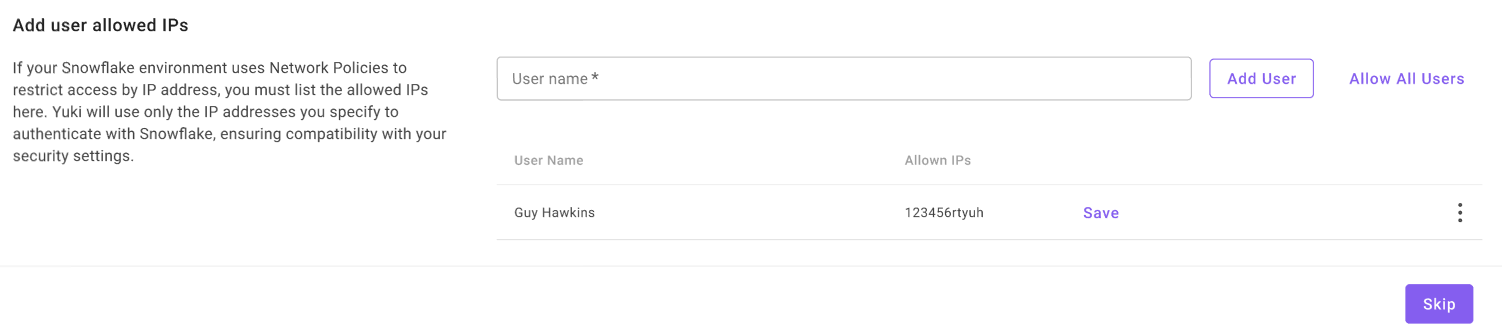
If your Snowflake environment uses Network Policies to restrict access by IP address, you must list the allowed IPs in Yuki's security settings. Yuki will use only the IP addresses you specify to authenticate with Snowflake.
tip
If you don't enforce Network Policies in Snowflake, you can skip this step.
Setup
- Enter the Snowflake username Yuki will use (e.g.,
DBT_PROD_USER,TABLEAU_USER) - Click Add User
- Enter that user's Allowed IPs - one or more IPv4 addresses or CIDR ranges:
203.0.113.10198.51.100.0/24203.0.113.10, 203.0.113.11
- Use Actions to edit or remove entries as needed
note
Use the same IPs/ranges you have allowlisted in your Snowflake Network Policy for those users.
Next Step
Proceed to General Security and Access Control.